Delete PDF Pages
Type the pages you want gone, such as 2, 5-7, and download the PDF without them.
Free · Runs in your browser · Your files are never uploaded
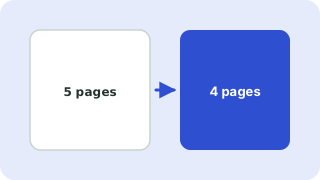
Your files are processed in your browser and are never uploaded.
How to delete pages from a PDF
- Add your PDF. The page count appears under its name.
- Type the pages to remove, for example
1,2, 5-7orlast. - Press Remove pages and save.
Before you share a document
Deleting a page is a quick way to remove a cover sheet, a blank page or a page with details you do not want to send. The remaining pages are kept exactly as they were. For sensitive material, open the result and check that the correct pages are gone before sending it.
If it is easier to say which pages to keep, use Split PDF & Extract Pages instead.
Your files are processed entirely in your browser. Nothing is uploaded to a server, which you can confirm in your browser's Network tab.
Related guides
Popular delete pdf pages presets
Frequently asked questions
How do I remove a page from a PDF?
Add the file, enter the page number in Pages to remove and press the button.
Can I delete several pages at once?
Yes. Use commas and ranges, such as 1, 4-6, 9.
Can I undo it?
Your original file is never changed. The result is a new download, so you can always start again.
Is the deleted content really gone?
The pages are removed from the new file. Always keep a copy of the original and check the result before sharing.
Related tools
 Split PDF & Extract PagesExtract pages or split a PDF into separate files
 Merge PDF FilesCombine several PDFs into one, in your order
 Rotate PDF PagesRotate all or selected PDF pages permanently
 Image to PDFCombine JPG and PNG images into one PDF
- Remove Pages from a PDFRemove unwanted pages from a PDF and download the rest