Crop Image
Drag the crop box, pick an aspect ratio or type exact pixel values, then download the cropped image as PNG, JPG or WebP.
Free · Runs in your browser · Your files are never uploaded
Your image is processed in your browser and is never uploaded.
How to crop an image
- Drop an image on the box or click to choose one.
- Drag the box to move it and drag a corner to resize. Pick an aspect ratio first if you need a fixed shape.
- For exact sizes, type the X, Y, width and height in pixels.
- Choose the format and press Crop and download.
Choosing an aspect ratio
- 1:1 for profile pictures and Instagram posts.
- 16:9 for YouTube thumbnails and slides.
- 4:5 and 9:16 for portrait social posts and stories.
- 35:45 for common passport photo proportions. Always confirm your country's exact size and background rules.
Quality
Cropping keeps the original pixels, so the cropped area is exactly as sharp as before. PNG saves it without any loss. JPG and WebP are smaller; raise the quality slider if you see artefacts. Photos that carry a rotation flag are shown and cropped the way they look on screen.
Your files are processed entirely in your browser. Nothing is uploaded to a server, which you can confirm in your browser's Network tab.
Related guides
Popular crop image presets
Frequently asked questions
How do I crop a photo to a square?
Choose Square 1:1 in Aspect ratio, move the box where you want it and press Crop and download.
Can I crop to exact pixel dimensions?
Yes. Type the width and height in pixels. With an aspect ratio selected, changing one value adjusts the other.
Does cropping lower the quality?
No. The pixels inside the box are copied unchanged. Quality only drops if you save as JPG or WebP with a low quality setting.
Is my image uploaded?
No. It is cropped in your browser and never leaves your device.
Related tools
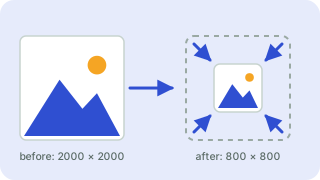 Image ResizerResize images to exact pixels or a percentage
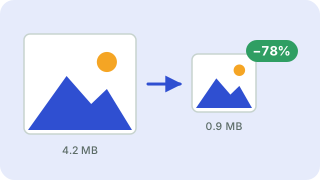 Image CompressorReduce image file size without uploading
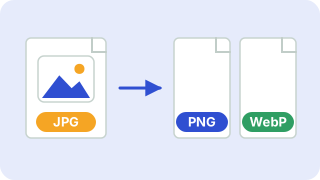 Image ConverterConvert between PNG, JPG and WebP
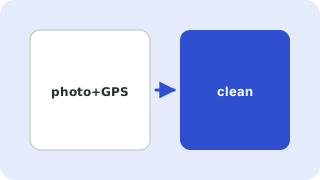 EXIF Data RemoverStrip location and camera data from photos
- Crop Image to a SquareCrop any photo to a perfect square for profile pictures and posts
- Crop Image to 16:9Crop an image to a 16:9 widescreen frame for YouTube thumbnails, slides and video covers
- Crop Image for InstagramCrop photos to Instagram-friendly shapes: square 1:1 or portrait 4:5