 InstantToolDeck
Image Resizer
Set a width and height (or a percentage) and resize one or many images. Processing happens on your device.
Free · Runs in your browser · Your files are never uploaded
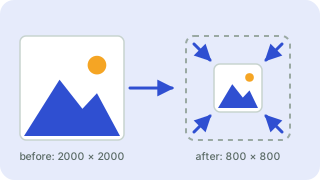
Your files are processed in your browser and are never uploaded.
Choosing how to resize
- Keep proportions (fit inside): scales the image to fit within your width and height without distortion. Enter just one dimension and the other is calculated.
- Crop to fill exactly: scales the image until the box is covered and trims the overflow from the center. Best for profile pictures and banners that need exact dimensions.
- Stretch: forces the exact size and will distort the picture unless the shapes already match.
Quality tips
Shrinking an image gives sharp results, but enlarging one cannot add detail, so by default images are never scaled up unless you choose to stretch or crop to a larger size. For web use, keep photos at around 1600–2000 pixels wide; for print you generally want about 300 pixels per inch of the printed size.
Popular image resizer presets
Frequently asked questions
How do I resize an image without losing quality?
Scale down rather than up, keep proportions, and save as PNG (lossless) or JPG/WebP at high quality.
How do I resize to an exact size like 1080×1080?
Enter both width and height and choose “Crop to fill exactly”. The image is scaled and center-cropped to the exact size.
Are my photos uploaded?
No. Resizing is done on your device in the browser.
Can I resize many images at once?
Yes, up to 5 at a time. Each resized image has its own download button.
Related tools
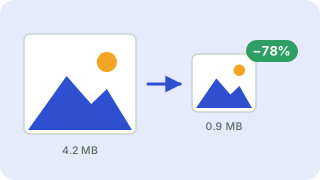 Image CompressorReduce image file size without uploading
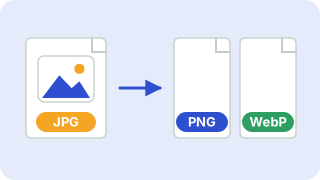 Image ConverterConvert between PNG, JPG and WebP
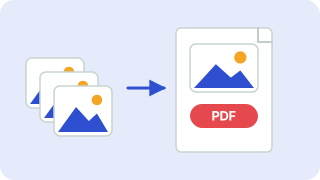 Image to PDFCombine JPG and PNG images into one PDF
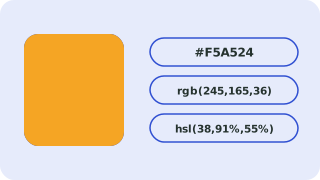 Color ConverterConvert HEX, RGB and HSL colors
- Instagram Post Resizer (1080×1080)Resize photos to 1080×1080
- Instagram Story Resizer (1080×1920)Resize photos to 1080×1920
- Facebook Cover Photo Resizer (820×312)Resize photos to 820×312
- YouTube Thumbnail Resizer (1280×720)Resize photos to 1280×720